Validator Backups
This page explains how to configure, manage, and restore scheduled backups for validator nodes. This helps ensure data durability and faster recovery in the event of failures or maintenance operations.
When using a local database we can set up a scheduled backup of the container.
|
If IntellectEU manages your cluster, backups are already handled through volume snapshotting. Before enabling this as a additional backup option, request that IntellectEU verify the available resources to avoid potential conflicts or resource constraints. |
Creating a Backup Schedule
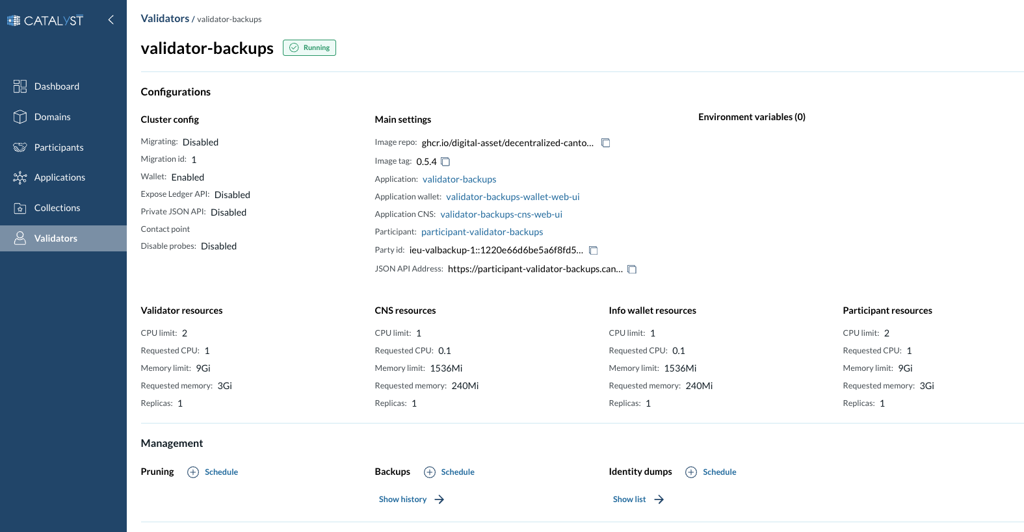
From the Validators page, navigate to the Backups section and click the Schedule button.
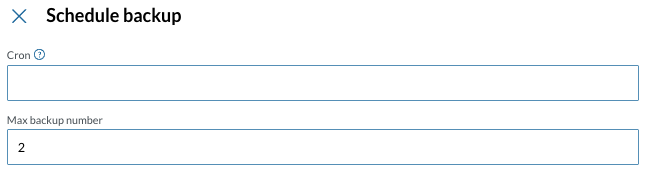
On the Schedule backup page, provide the following information:
-
Cron - a cron expression according to the standard Unix cron syntax
-
Max backup number - the maximum amount of backups to retain. Older backups are automatically removed when this limit is exceeded.
|
Before enabling a backup schedule, ensure that the cluster has sufficient available storage to accommodate the backup volumes. The cluster should have free space at least equal to the size allocated to the database. |
Viewing the backups
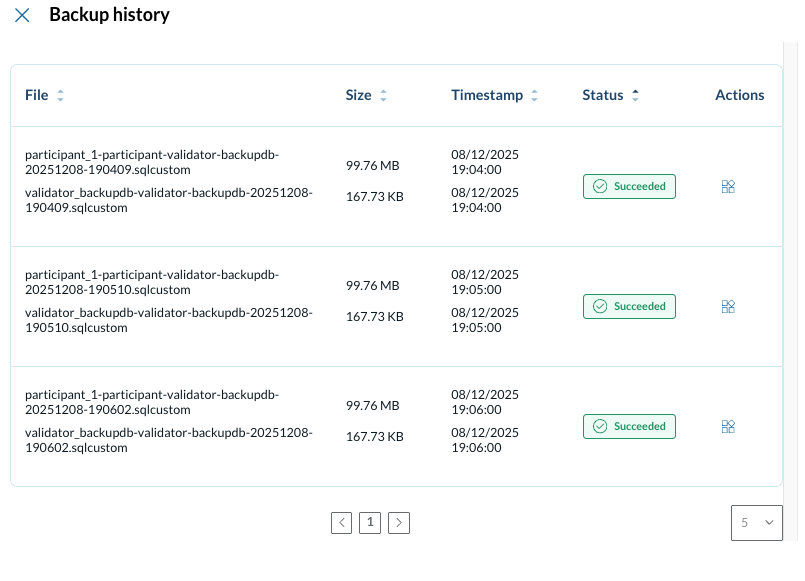
To view existing backups, go to the Validators page, locate the Backups section, and select Show history.
Restoring from a backup
From the backups list, open the Actions menu for the desired backup and select Restore.
A Restore status indicator will appear, showing the time the recovery started and its current status.
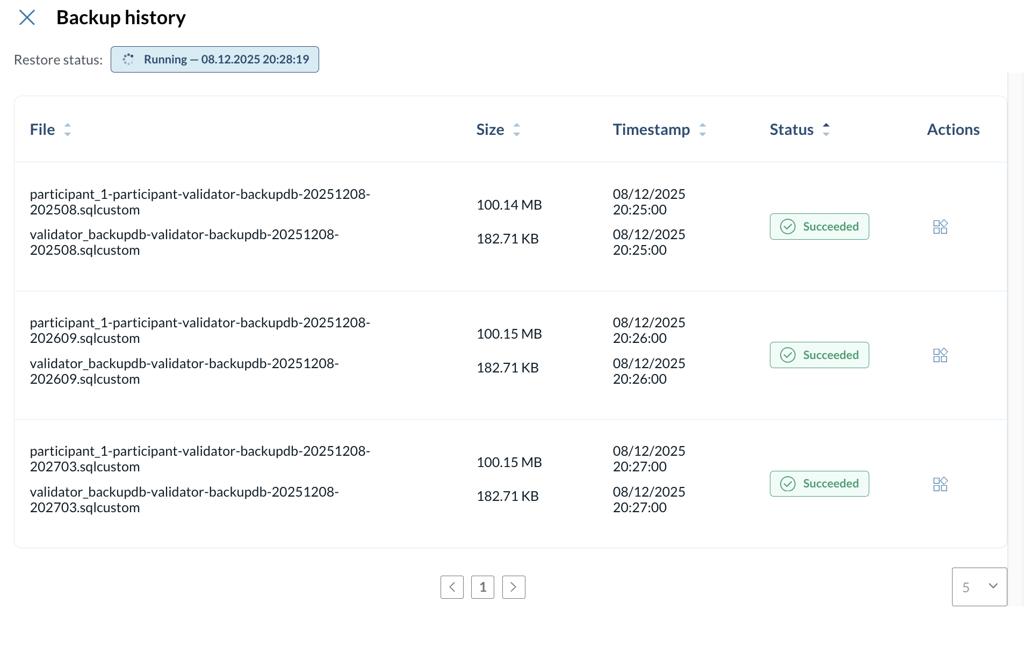
Once the restore process completes, the status indicator changes to Completed.
