Package Management Guide
In this guide, we explain how CPM users can manage their published packages through the My Packages tab. This includes publishing new packages, editing package details, creating new versions, and removing packages.
My Packages Overview
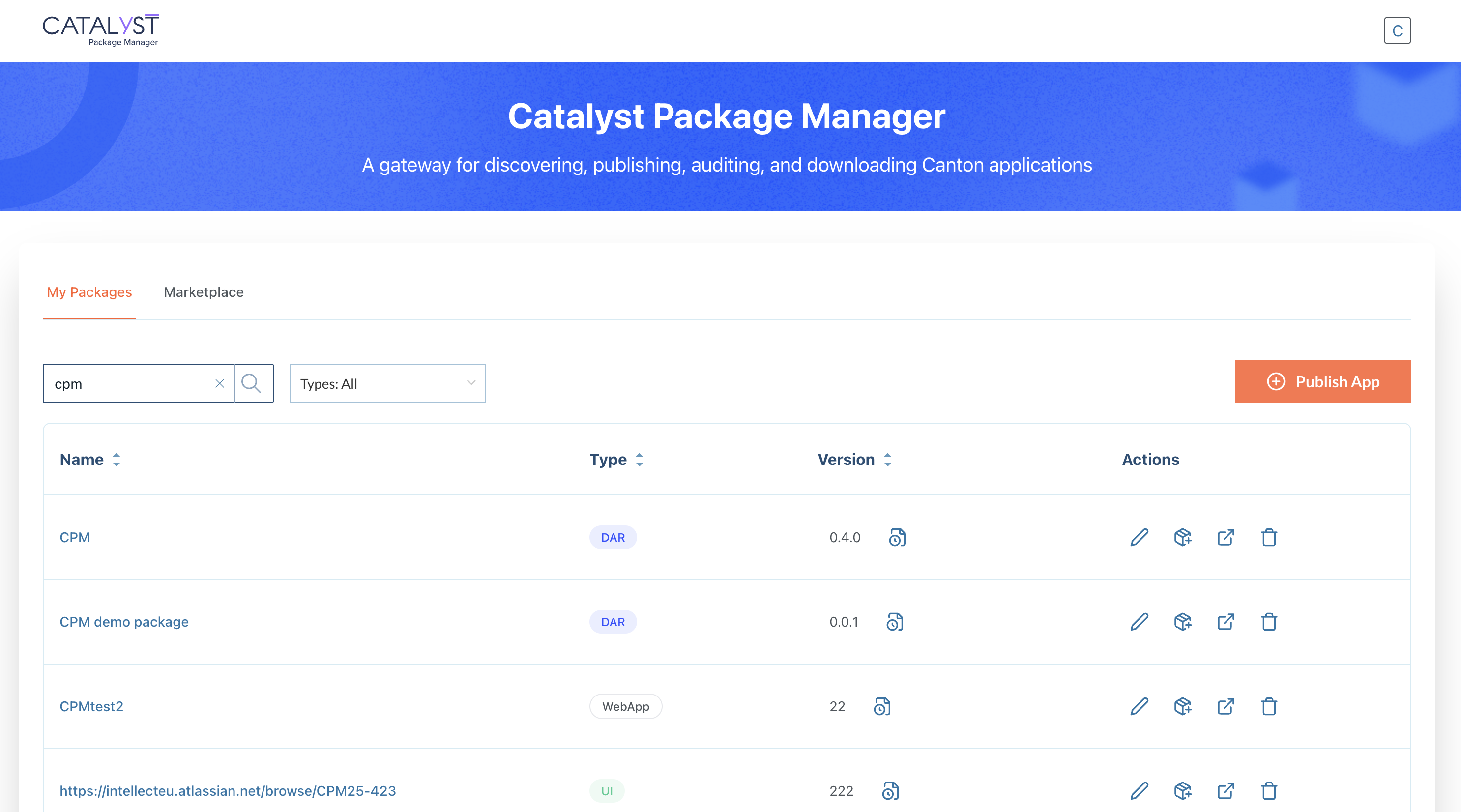
When opening the My Packages tab, CPM provides an overview list of all packages published by the current user/organization.
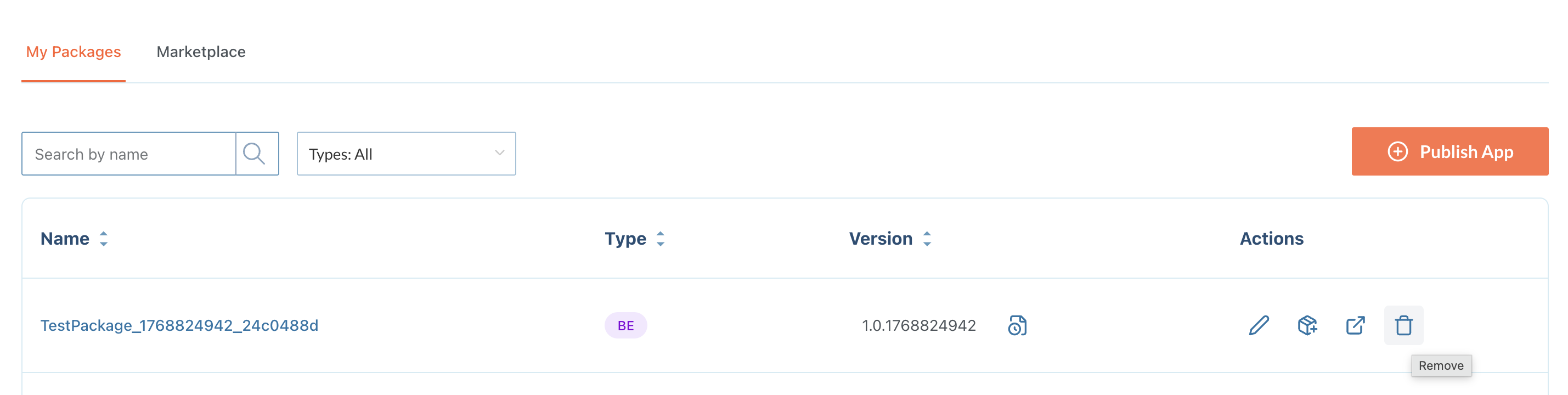
Each entry provides quick access to actions such as editing, versioning, and deletion through action buttons displayed on the right.
The published packages can be searched and filtered to help you locate packages faster.
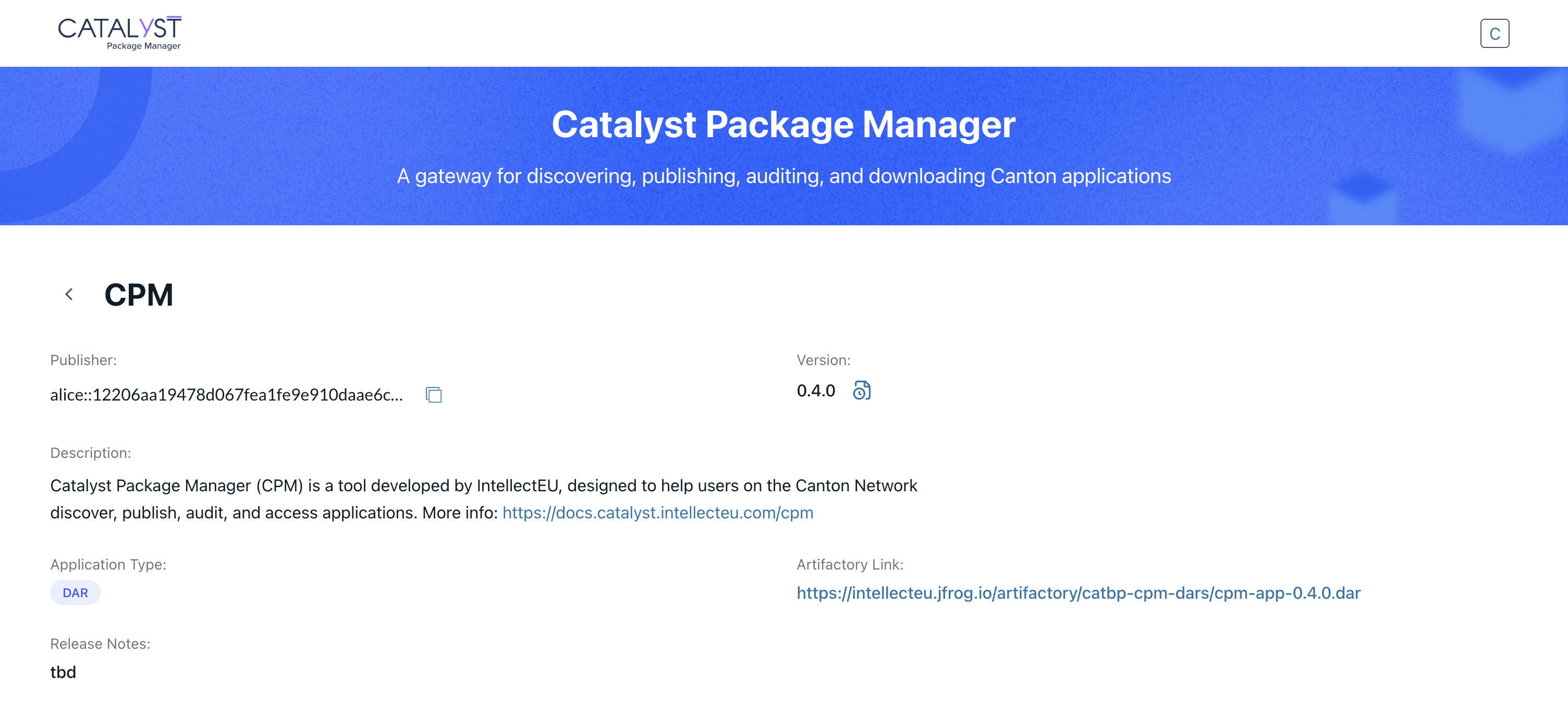
To view the full details of a published package, simply click on the package name.
The following details will be displayed:
-
Name - the package name
-
Publisher - The organization or team who published the package
-
Description - A description of the package
-
Application type - The application/ package type
-
Release notes - The package version release notes
-
Version - The currently published version
-
Artifactory link - A direct link to download the package
Publish a New Package
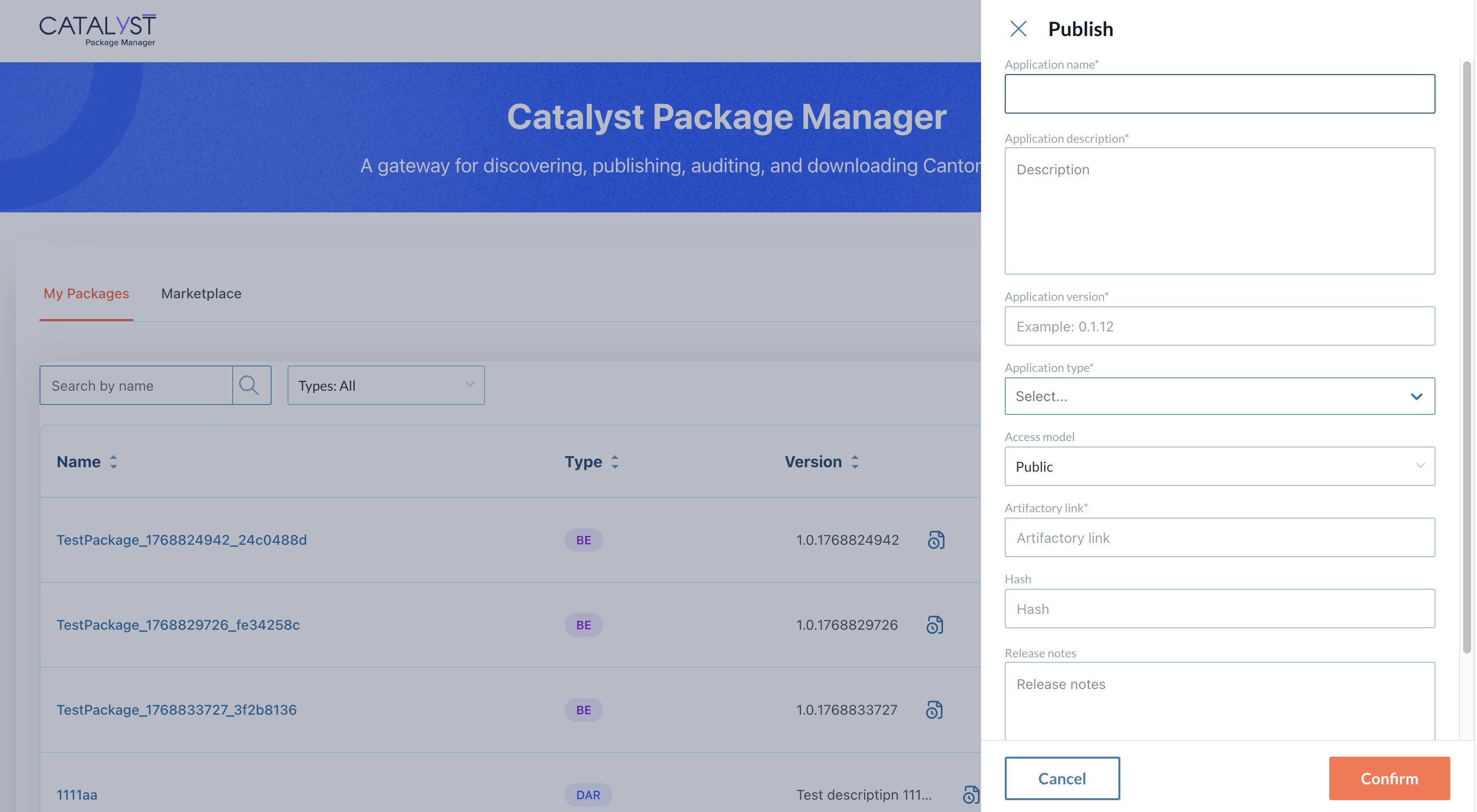
To publish a new package in CPM, click on the Publish App button while browsing the My Packages tab.
You will be guided through a workflow to provide all required information, including:
-
Application name
-
Description
-
Version
-
Application type
-
Access model (only public for now)
-
Artifactory link
-
Hash
-
Release notes
-
Tags
When publishing a new package, it will become discoverable and ready for distribution in the Marketplace.
Edit a Package
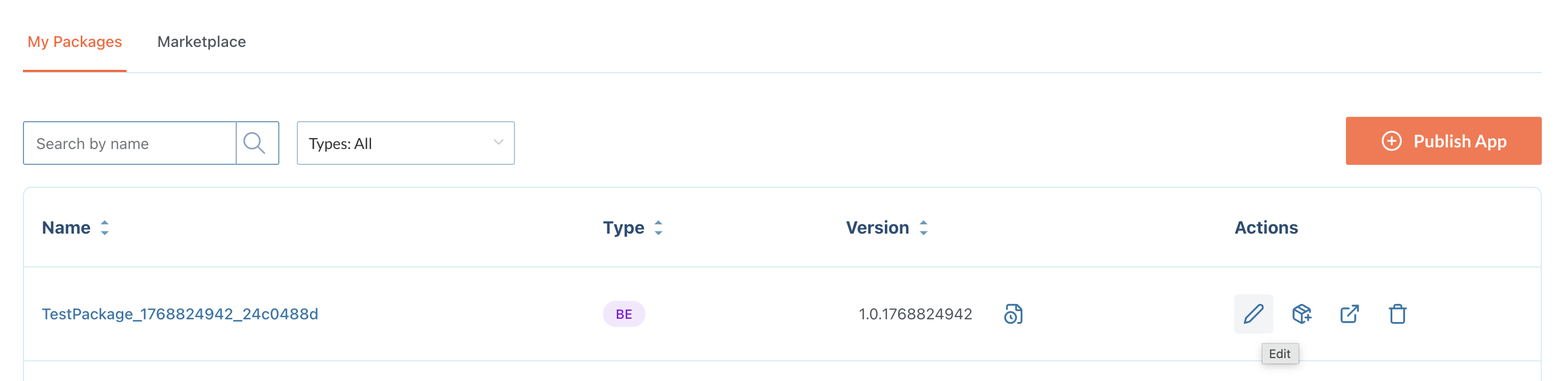
To edit an existing package, simply click the Edit icon while browsing the My Packages section.
Create a New Package Version
To create a new version of an existing package, simply click the Create New Version icon while browsing the My Packages section.
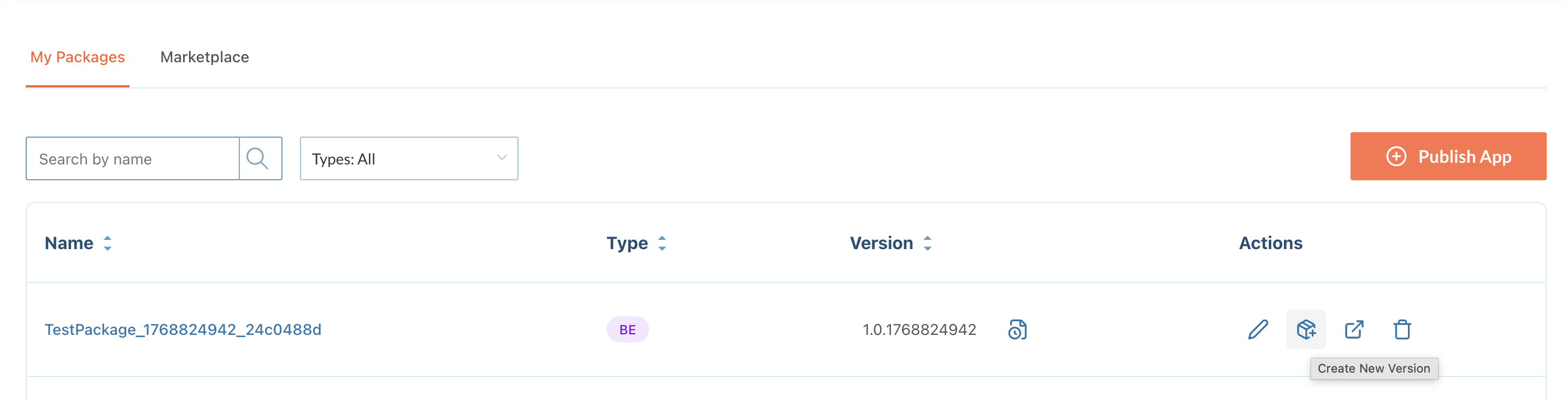
When creating a new version, users can update package metadata, content references (Artifactory links), and version details.
When creating a new version, older versions are not impacted, ensuring continuity and traceability across the lifecycle of the package.
View Package Version History
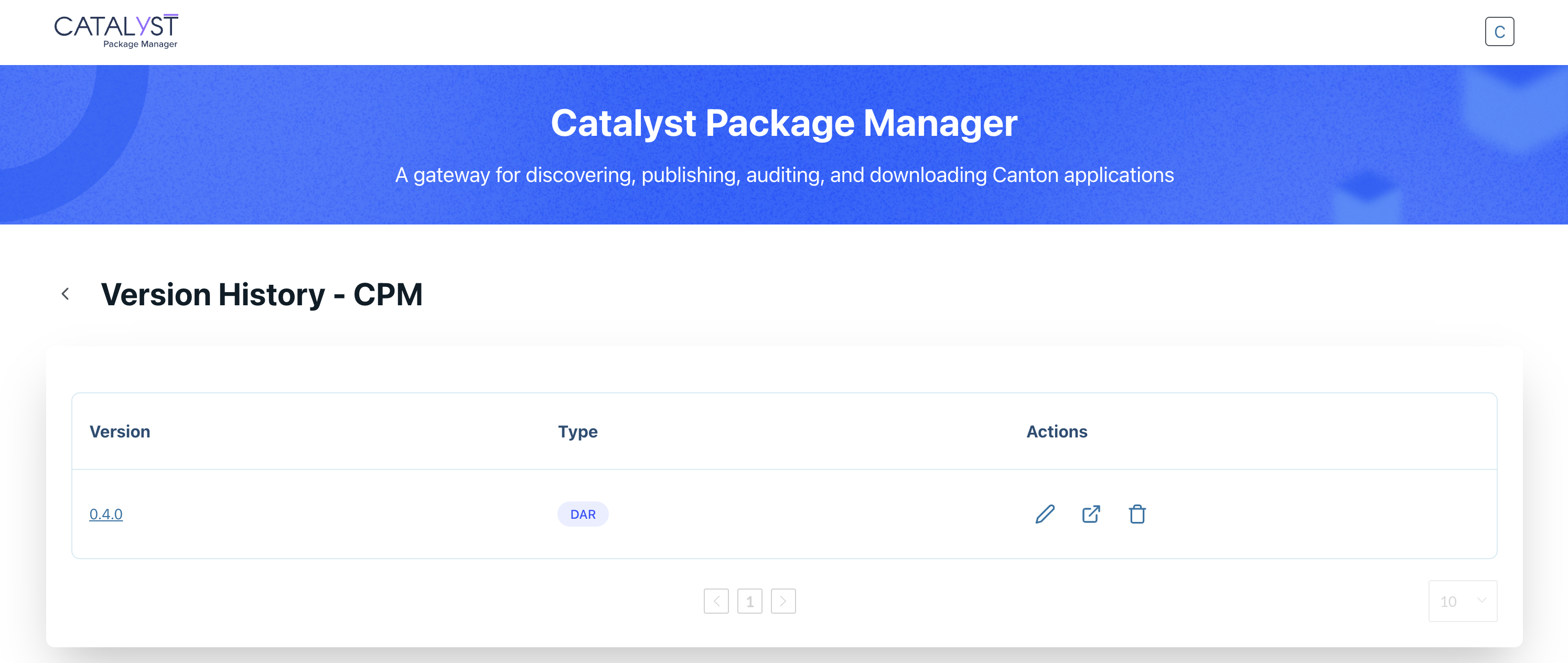
To display the version history of a package, simply click the Version History icon while browsing the My Packages section or Package Details page.
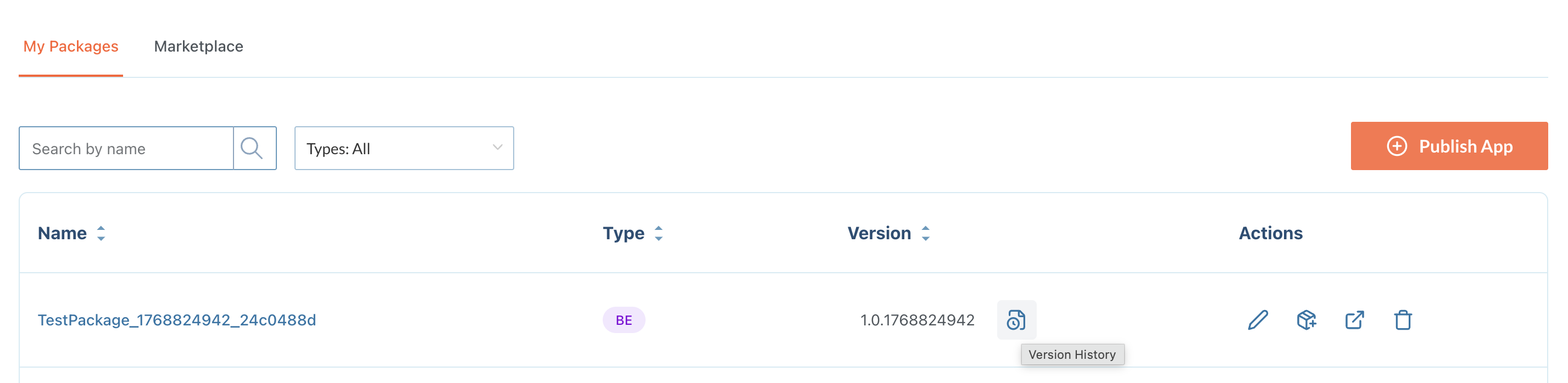
The Version History allows users to track package evolution over time and manage each version independently.